

Product
What IndeXpense does, how it works and who it’s for
Each module explained with the real product screen, exactly as your team sees it.


Expenses
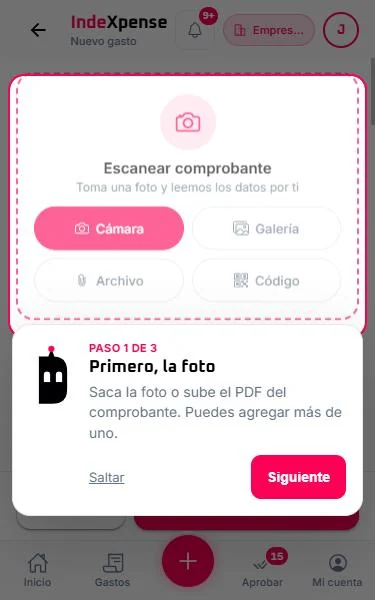
A photo is enough: IndeXpense reads the receipt
- What it does
- Records expenses with their receipts and suggests the details so nobody has to type them.
- How it works
- Take a photo, pick one from your gallery, upload the PDF or scan the document’s code.
- Text recognition and AI suggest the amount, date, vendor, tax ID, folio number, taxes and category.
- You can add more than one photo to the same expense and correct any detail before submitting.
- Company policies are checked before submitting, not after.
- Who it’s for
- For submitters: field sales reps, technicians, traveling managers and anyone with petty cash or a company card.
Advances
Advances requested, approved and reported in one place
- What it does
- Request money before a trip or a purchase and report expenses against that advance.
- How it works
- The person requests the advance with a reason and amount; their manager or the matching workflow approves it.
- Finance records the payout and the advance becomes “active”.
- Every expense reported is deducted from the advance, so you always see how much is left to report.
- Who it’s for
- For companies with travel, field operations or on-site purchases that are tracked in spreadsheets today.

Approvals
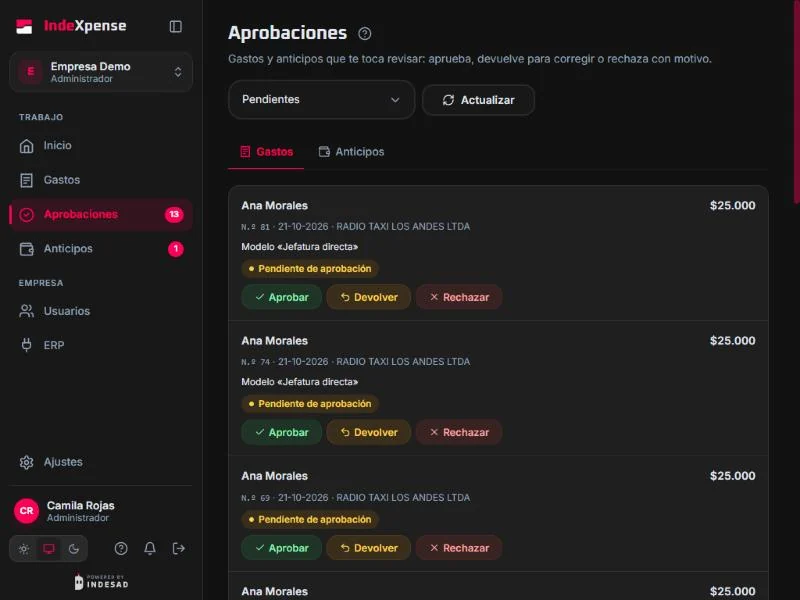
Managers approve in minutes, wherever they are
- What it does
- Each expense reaches the right decision-maker, with the receipt in view and the full history.
- How it works
- With no setup, every expense goes to the submitter’s direct manager.
- Approve, return for changes or reject: returning and rejecting always require a reason.
- If an expense has been waiting for days, the approver gets a reminder and finance gets a summary.
- Approve from the portal, the app or the link in the email.
- Who it’s for
- For managers who sign paperwork at month-end today, and for finance teams chasing signatures.
Policies and workflows
Your rules, applied to every expense
- What it does
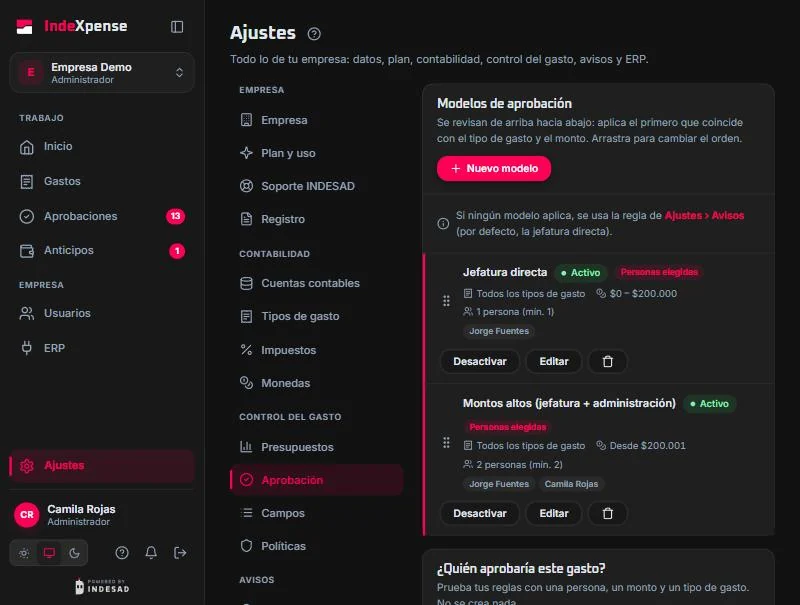
- Define what can be submitted, with which limits, and who approves based on amount, expense type or cost center.
- How it works
- Expense types with their GL account, taxes and required fields (for example, cost center).
- Approval workflows in order: the first match applies; if none applies, the direct manager decides.
- A simulator answers “who would approve this expense?” before you turn it on.
- Who it’s for
- For finance and accounting teams that need control without checking every receipt by hand.
Budgets and metrics
What’s waiting for a decision and how much has been spent, as soon as you open it
- What it does
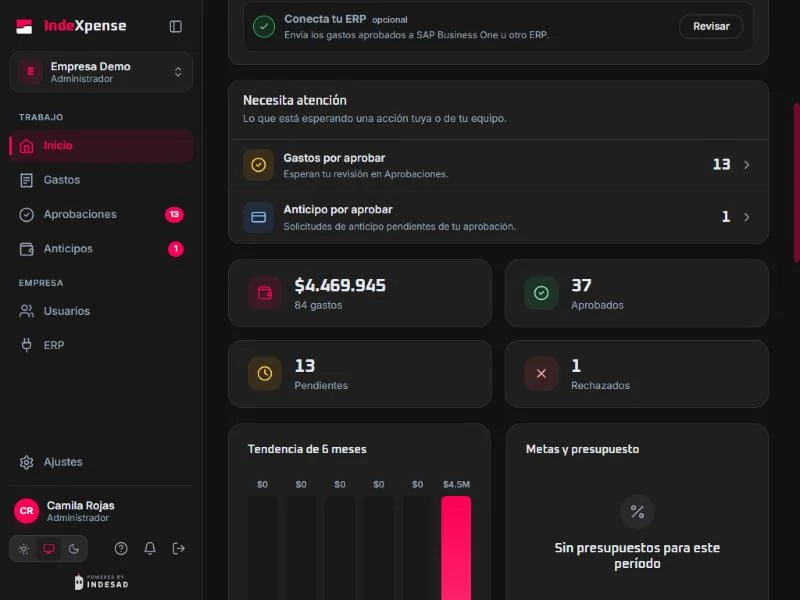
- The home screen shows what’s pending, period totals, the trend and progress against budget targets.
- How it works
- “Needs attention” lists the expenses and advances waiting for action from you or your team.
- Totals by status (approved, pending, rejected) and the six-month trend.
- Budget targets per period, so you know in time if a department is overspending.
- Who it’s for
- For leadership and finance teams who want to see spending without asking for a report.
SAP Business One
Approved expenses arrive posted, with no re-keying
- What it does
- Fully approved expenses are sent to SAP Business One as a vendor invoice or journal entry, with their account, cost center and payment.
- How it works
- Pick the ready expenses and send them; each one shows in the list whether it’s already in SAP and under which number.
- If SAP doesn’t respond, the submission is queued and retried automatically, without duplicates.
- An expense already sent to SAP can’t be changed: what accounting sees is what was approved.
- Who it’s for
- For accounting teams that are done copying expense reports by hand.
Mobile app
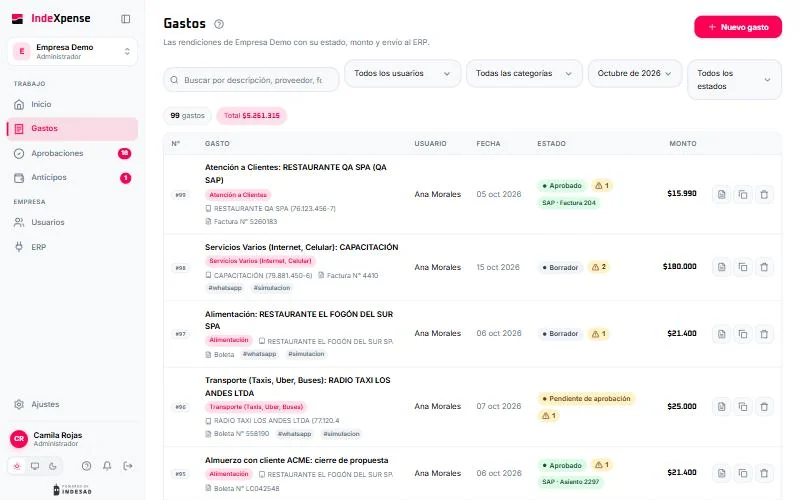
On your phone, with everything the portal has
- What it does
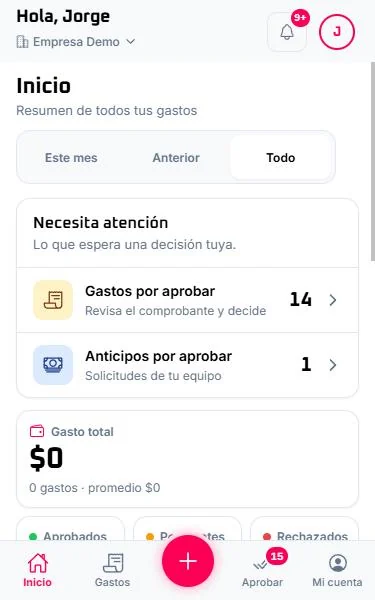
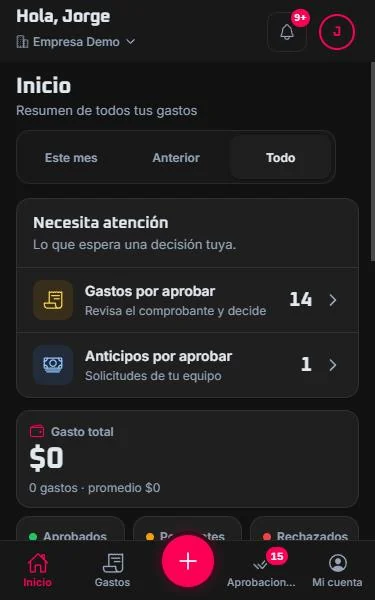
- The app to submit expenses, approve and review advances, in light or dark mode, including iPhones with a notch.
- How it works
- Install it from the browser (no app store needed); it’s also available for Android and iPhone.
- The center button opens a new expense with the camera; the tabs take you to Expenses, Approve and My account.
- What you do in the app shows up instantly in the portal, and vice versa.
- Who it’s for
- For the whole team: submitters in the field and approvers between meetings.
Multi-company platform and holding
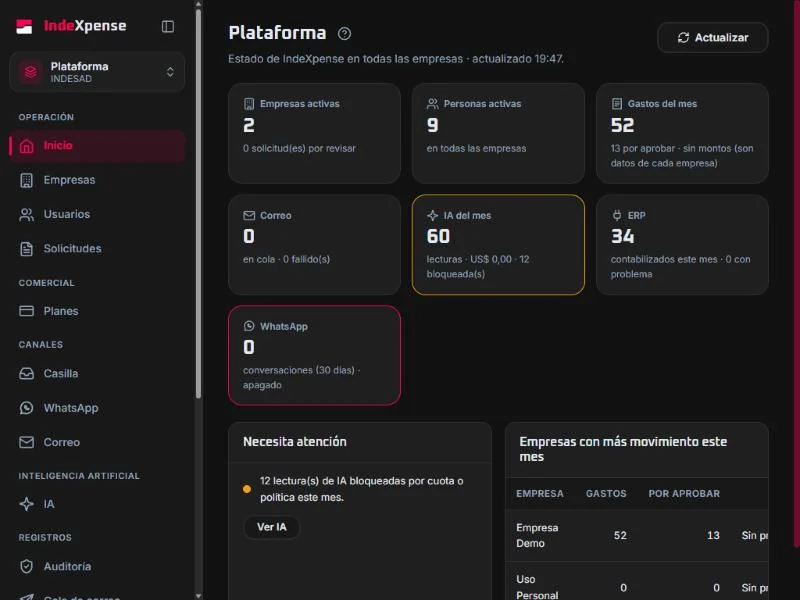
Multiple companies, each with its own data
- What it does
- Each company has its own space, plan, users and rules. A holding sees the consolidated view without mixing data.
- How it works
- A person can work in several companies and switch between them without signing out.
- The holding view adds up expenses and pending items across the group’s companies.
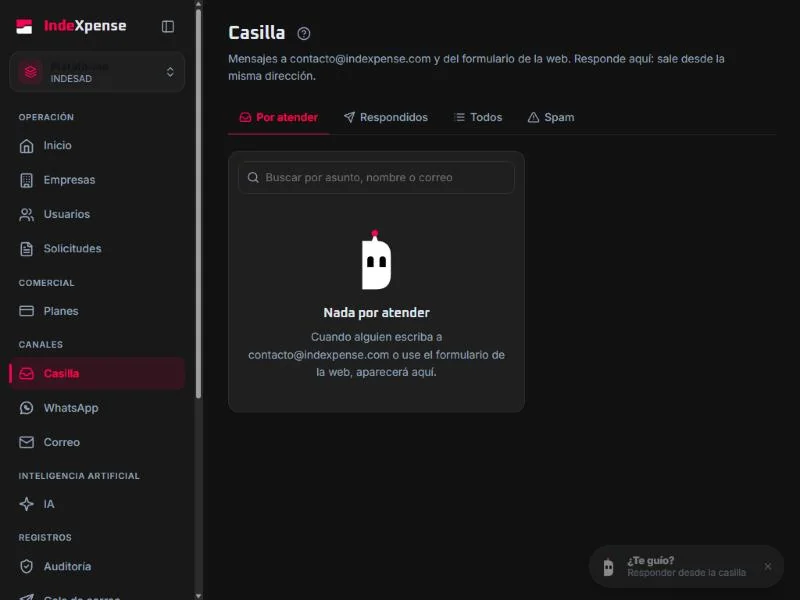
- Platform (INDESAD) manages plans and channels without seeing each company’s data.
- Who it’s for
- For groups of companies, outside accountants and anyone managing more than one legal entity.
Users and invitations
Invite your team with a link
- What it does
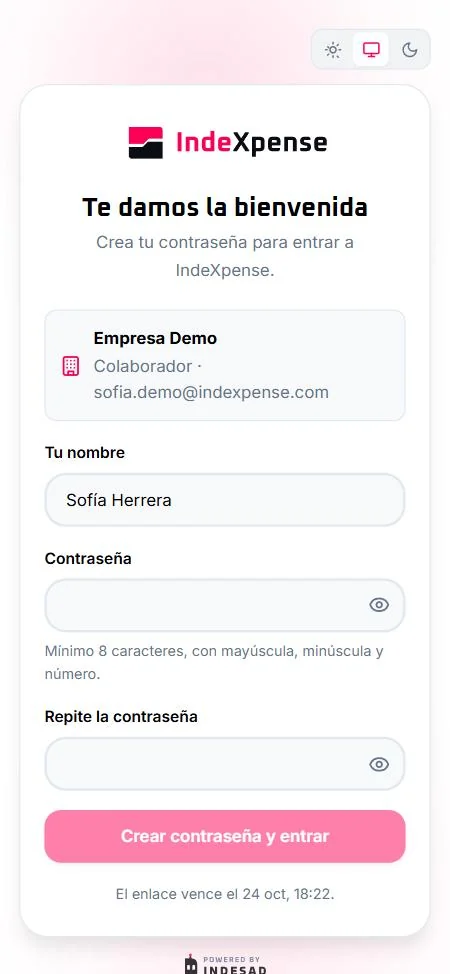
- Add people with their role and manager; each one creates their own password from the invitation.
- How it works
- You invite by email; the person gets a link that expires and creates their password.
- From Users you can resend or cancel the invitation and sign someone out of all sessions.
- Each person’s manager determines who approves their expenses by default.
- Who it’s for
- For whoever manages the company in IndeXpense.
Guides with the mascot
Learn by using it, no training required
- What it does
- The INDESAD mascot guides you step by step on every screen, and the help panel brings together guides, shortcuts and what’s new.
- How it works
- “Want a guide?” appears wherever there’s something to do, and you can dismiss it.
- Guides move across the real screen, step by step, and remember what you’ve already seen.
- What’s new explains what changed in the product, with dates.
- Who it’s for
- For teams starting today and for people who use IndeXpense once a month.
How it works
From receipt to SAP in five steps
One path for everyone: whoever submits, approves, pays and posts sees the same expense and its history.
1Photo or WhatsApp
The submitter takes a photo of the receipt in the app or sends it to the IndeXpense number. An invoice PDF works too.
2AI scan
IndeXpense suggests the amount, date, vendor, tax ID, folio number and category. The person reviews and submits; AI never approves.
3Approval
The direct manager approves, or the workflow you define by amount, expense type or cost center. They can approve, return for changes or reject with a reason.
4Payment recorded
Finance records the payment with method, reference and date. The person gets an email, and the expense can’t be paid twice.
5SAP Business One
The approved expense is posted to SAP. Each expense shows whether it arrived, is queued or needs review.

Every step is recorded in the expense history and emails whoever needs to act next.
Your next expense report, paperless
Create your free account or let’s talk about your company, how you approve and your SAP.

